


Exploring Magic sets: editions, cards, local prices
By The Tapt team · updated
How to browse every Magic set in Tapt, combine several editions, look up a card's printings and see their local reference prices.

Magic releases hundreds of products every year: expansions, Commander products, reprints, Secret Lair, promotions, digital versions. A single card can exist in a dozen editions, with different artwork, numbers and finishes, and each has its own price. To find your way around, you need a place where you can browse the sets, open a set's list, and see what each printing costs at local stores.
That is the job of Tapt's Sets page. This guide explains how it is organized, how to filter and combine sets, how to read a set's page, how to find all the printings of a card, and how to go from there to a price comparison, a collection or a deck.
Why editions matter
A card is more than its name. You buy a printing, meaning a specific edition, a collector number and a finish. Two copies of the same Sol Ring can have different artwork, prices that look nothing alike and very uneven availability.
Three reference points identify a printing:
- The set code: three or four letters, like C21 for Commander 2021.
- The collector number: the number printed at the bottom of the card, for example 263.
- The finish: regular, foil or etched.
That is why Tapt writes cards in the form "C21 · #1": the set and the number are enough to designate the exact copy. Knowing how to read these two markers avoids buying the wrong version, and it is the key to using the comparator's filters.
The sets page
When you open Sets, two tabs show up: Sets and Cards. The Sets tab lists every edition, grouped by year, from the most recent to the oldest. Each set appears as a tile that gives its name, its code, its number of cards and its release date. In the screenshot, for example, Star Trek Commander (TRC) has 556 cards and comes out on November 13, 2026, and Reality Fracture (FRA) has 462.
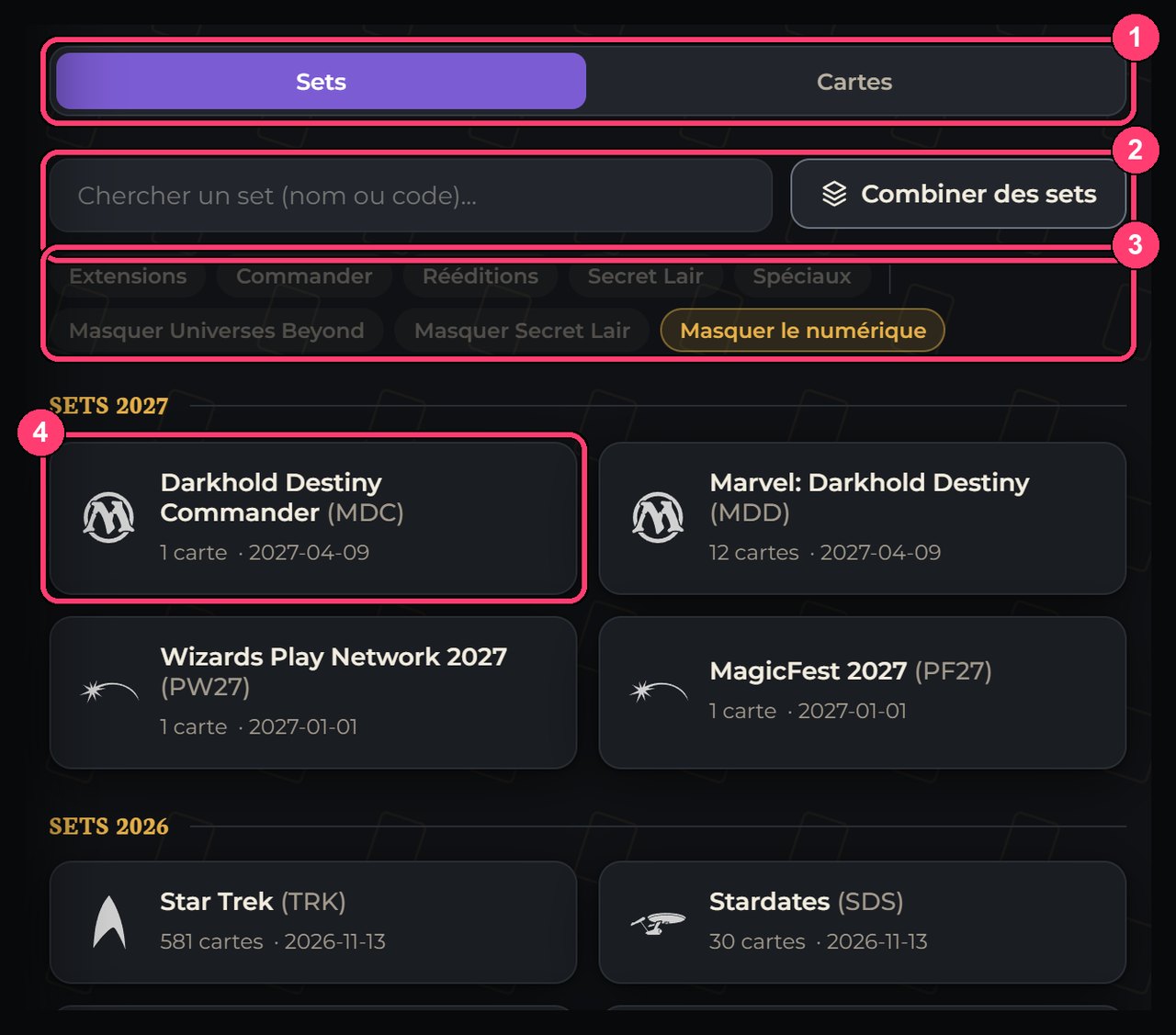
A "Search a set (name or code)" field filters the list. So you can type "c21" or "Commander 2021", and in both cases the set shows up.
Category filters
Under the search, a row of buttons sorts the sets by category:
- Expansions: the game's main sets.
- Commander: the products that contain the decks and cards for that format.
- Reprints: the sets that bring back older cards.
- Secret Lair: limited-run products, sold in series.
- Specials: promotions and other particular products.
Three buttons hide what does not interest you:
- Hide Universes Beyond: removes sets that mix Magic with universes from elsewhere (films, video games, series).
- Hide Secret Lair: removes those products when you want to focus on main sets.
- Hide digital: removes sets that exist only in a digital version, like those of Arena. This filter is active by default.
These filters combine. To browse only paper Commander products, turn on "Commander" and leave the masks in place.
Combining sets to see them together
A "Combine sets" button serves a precise need: gathering several editions in one view. The page explains it in one sentence: "Tap the sets to gather, then 'Create my view': their cards show up together, as a single set." It is useful when you look for a card you know was printed in a few products without remembering which, or when you want to compare two Commander sets side by side.
A concrete example: you own two Commander products from the same year and you want to look for a card in both. You combine them in one view and browse the list in one go, as if it were a single set. The "Clear" and "Close" buttons undo the selection when you are done.
Looking up a card's printings
The second tab, Cards, answers the opposite question: you know a card's name and you want to see all its editions. The page invites you to type a card's name and pick it from the list to see its printings, with the original set. Each printing appears with its edition, number and finish, which lets you spot the version you want at a glance.
This tab is the natural complement of the card comparator: the comparator tells you where a version costs least, and the Sets page shows you every version that exists.
A set's page
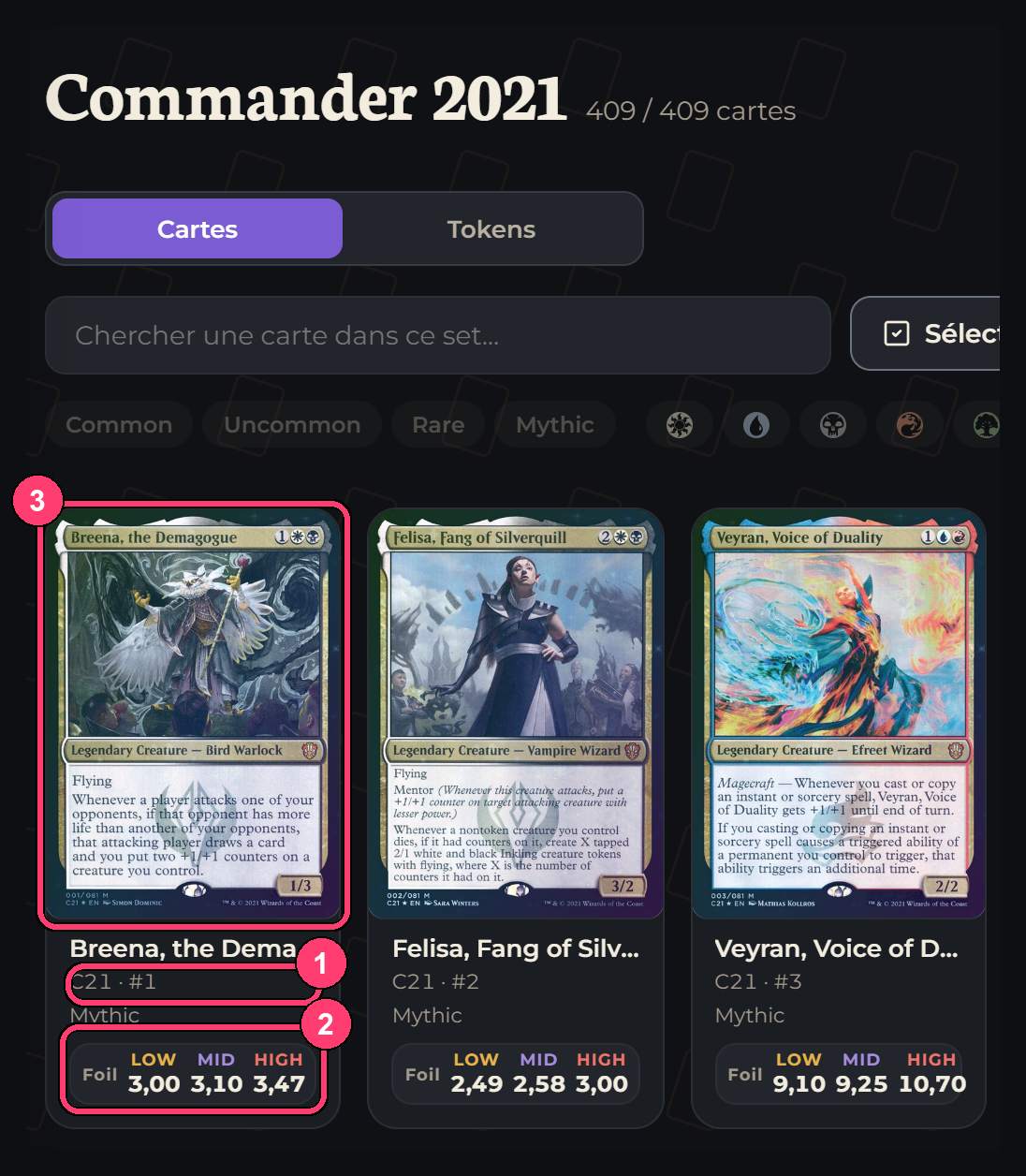
Clicking a tile opens the set. Take Commander 2021. The page shows its name, the number of cards (409 at the time of the screenshot) and two tabs: Cards and Tokens. A "Search a card in this set…" field searches the list, and rarity filters (Common, Uncommon, Rare, Mythic) and colour filters narrow the display.
Each card appears with:
- its image;
- its name;
- its set code and number (for example C21 · #1);
- its rarity;
- its LOW, MID and HIGH reference prices for each finish that exists, for example foil.
When no local store has the card in stock, the row reads "No QC price" rather than a figure. The LOW, MID and HIGH prices are those described on the page How to read LOW and MID prices: in Canadian dollars, computed on cards in stock and in Near Mint condition, and recalculated every night. A "How to read these prices" link goes with them on the page.
Selecting cards and taking action
A "Select cards" button turns the page into a working tool. The − and + buttons under each card adjust its quantity in your selection, and tapping the image always opens the card's page. Once your selection is made, you can:
- Add to a collection: an existing one or a new one, with a tag if you want.
- Add to a deck: an existing one or a new one, with a tag if you want.
- Compare prices at stores: the selection opens in the deck comparator, with these exact printings.
- Copy in decklist format, to paste wherever you want.
Adding to a collection or a deck requires a free account. You can choose each card's condition and finish before adding it: a card that does not exist in foil is added as non-foil, and you specify the quantity.
The path to the deck comparator is the most practical for buying: you pick in a set the cards you are missing, you send the selection to the comparator and you get the total store by store. The article on the deck comparator details the results you will receive.

A card's page
Tapping a card opens its page. You will find these actions there:
- Flip the card, to see its second face when it has one;
- Compare prices, which opens the comparator on that card;
- See all editions, which lists its other printings;
- Legalities, which tells you whether the card is allowed in Commander, Standard, Modern, Pioneer, Legacy and Pauper.
Legalities are useful when you hesitate on a format: a recent card can be legal in Commander but not in Standard, or the reverse. They are on the page, without your having to look elsewhere.
Three use cases
Completing a Commander deck. You have a precon and you want to know which cards from its set you are missing. Open the set, select the cards and send them to the deck comparator. If your deck comes from a precon, the page of preconstructed decks already shows the price to rebuild it.
Choosing a specific version of a card. Go through the Cards tab, type the name, look at the printings and note the edition you like. Then enter it in the comparator, in Advanced mode, to aim exactly at that version.
Building a collection by set. Some players collect a whole set. A set's page shows the complete list with the numbers: a handy base to tick off what you already have and spot what is missing.

Reading rarities and numbers
Each card in a set carries a rarity: Common, Uncommon, Rare or Mythic. The rarity says how often the card appears in a set's packs, not its power: a common can be played in hundreds of decks, and a mythic can stay at the bottom of a box. The rarity filters on a set's page mostly serve to shrink the list when you look for a specific card or complete a collection in stages.
The collector number also deserves a glance. In a set, numbers generally follow the order of the main list. When a number exceeds the number of cards in the main list, you are often dealing with a special version of a card already present: alternate artwork, extended frame or a particular finish. It is a way to quickly spot a rare version, and it is the reason the comparator's Advanced mode accepts a collector number.
Commander, Secret Lair, Universes Beyond: the products that blur the trail
Three product families explain why the same card shows up everywhere.
- Commander products contain hundred-card decks and many cards playable only in that format. A popular card is often reprinted there, which multiplies its printings.
- Secret Lair products are limited-run products, sold in series, with special artwork. Each series has its own price and its own practical rarity.
- Universes Beyond mix Magic with licensed universes: a familiar card takes on a different look there.
The filters on the Sets page exist precisely to untangle all of that. If you look for the "normal" version of a card, hide those three families. If you want the rarest artwork instead, that is exactly where to look.
A few habits to buy at the best price
1. Decide your criterion first: the artwork, the price, the finish or the consistency with the rest of your deck. 2. Look at the printings before comparing. Comparing the prices of ten versions without knowing which you want is pointless. 3. Note the set and the number, not only the name: it is what lets the comparator aim at the right printing. 4. Check "No QC price". A card with no local price is not necessarily rare: it is simply out of stock at our stores that day. Price tracking can warn you when it reappears, as the article on price tracking explains.
Frequently asked questions
What is the difference between a set and an edition?
In everyday use, none: a set is an edition, meaning a product released on a given date with its code. People also say expansion for the main sets.
Why do some cards show "No QC price"?
Because no local store has them in stock at the time of the calculation. Tapt prefers to show nothing rather than an invented figure.
Are the prices on a set's page the stores' prices?
They are reference prices, recalculated every night from local stores: LOW for the bottom of the market, MID for the middle, HIGH for the top. For a specific offer, go through the comparator.
Why are digital sets hidden?
Because most players look for paper cards. The "Hide digital" filter is active by default, and you can remove it to see them.
Do I need an account to browse sets?
No. Browsing sets and reading cards is open to everyone. The free account serves to add cards to a collection or a deck.
Going further
Open the Sets page, look for a product you own and look at its list. To buy a card you spotted, go through the comparator, which tells you where it costs least, shipping included.
- Magic sets
- Magic editions
- set card list
- card printings
- Commander 2021
- Secret Lair
- set price
Comments 0
Sign in or create your account to leave a comment.
No comments yet.